All skills › Guides › ChatGPT
How to add a skill to ChatGPT
ChatGPT's Skills page is only on Business, Enterprise, Healthcare and Edu plans for now. On a personal plan (Free, Plus or Pro), you get the same result with a Project. It takes about two minutes.
Steps checked November 2026. Menus in AI apps change often, so names may differ slightly.
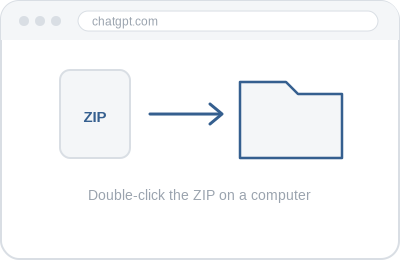
1. On a computer, unzip the download and find ANY-AI-PASTE-VERSION.txt.
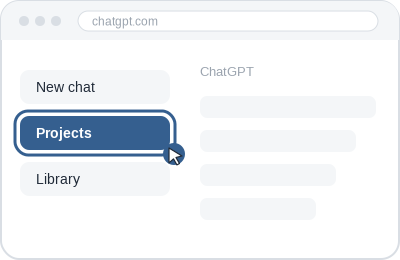
2. In ChatGPT, open Projects and make a new project.
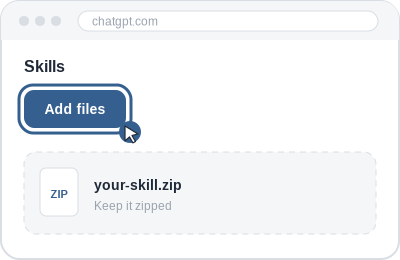
3. Add the .txt file to the project. In its instructions, type: Follow the attached file.
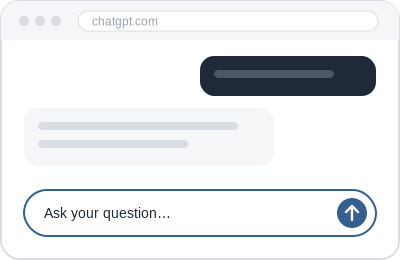
4. Start a chat in that project and ask. On a Business, Enterprise or Edu plan, you can upload the ZIP under Skills instead.
Illustrations of each click, not screenshots. Adding a skill is easiest from a computer; your download link keeps working.
- Unzip the download
On a computer, unzip the skill's ZIP and find ANY-AI-PASTE-VERSION.txt. Every What If Labs skill includes it. - Make a Project
In ChatGPT, open Projects in the sidebar and make a new project, for example named after the skill. - Add the file
Add ANY-AI-PASTE-VERSION.txt to the project's files. In the project's instructions, type: Follow the attached file. - Just ask
Start a chat inside that project and ask your question. Every chat in the project uses the skill.
On a Business, Enterprise or Edu plan, you can upload the ZIP instead: go to chatgpt.com/skills, choose Add, then Upload from your computer. If ChatGPT answers without using it, type @ and pick the skill by name.
If something goes wrong
I don't see Projects.
Try ChatGPT on the web at chatgpt.com. If Projects still isn't there, start a new chat, paste everything from ANY-AI-PASTE-VERSION.txt as your first message, then ask your question in that chat.
The answer doesn't seem to use the skill.
Make sure you're chatting inside the project that holds the file, and that its instructions say: Follow the attached file. Starting a new chat in the project usually fixes it.
Should I unzip the file?
Not for Claude: it takes the ZIP as it is. Unzip it for Gemini (it takes the folder), for Grok if it shows a New Skill form instead of Upload, for ChatGPT on a personal plan, and for coding agents such as Claude Code.
Can I use the same skill in more than one app?
Yes. A skill is a standard folder with a SKILL.md file inside, so the same download works in Claude, Gemini (as the unzipped folder) and Grok, and in ChatGPT through the paste-in file or, on some business plans, the ZIP. Personal ChatGPT plans use the included paste-in file. Add it to each app separately.
Skills to try in ChatGPT
Every store has a free starter skill, so you can try the steps above right away. Browse the skill stores.